How To Cancel Or Delete Stories
What happens when I delete or cancel a Story?
If you've deleted or canceled a Story in Storrito but aren't sure what happens next, or you want to make sure it won't post, this guide explains what each action does and how to confirm that your Story is fully removed from the queue.
How to delete or cancel a Story
1. Delete or archive from your Gallery
If you want to remove a file entirely, open the Gallery, click the asset, and choose “Delete”. If you may need it later, you can choose to “Archive” it first.
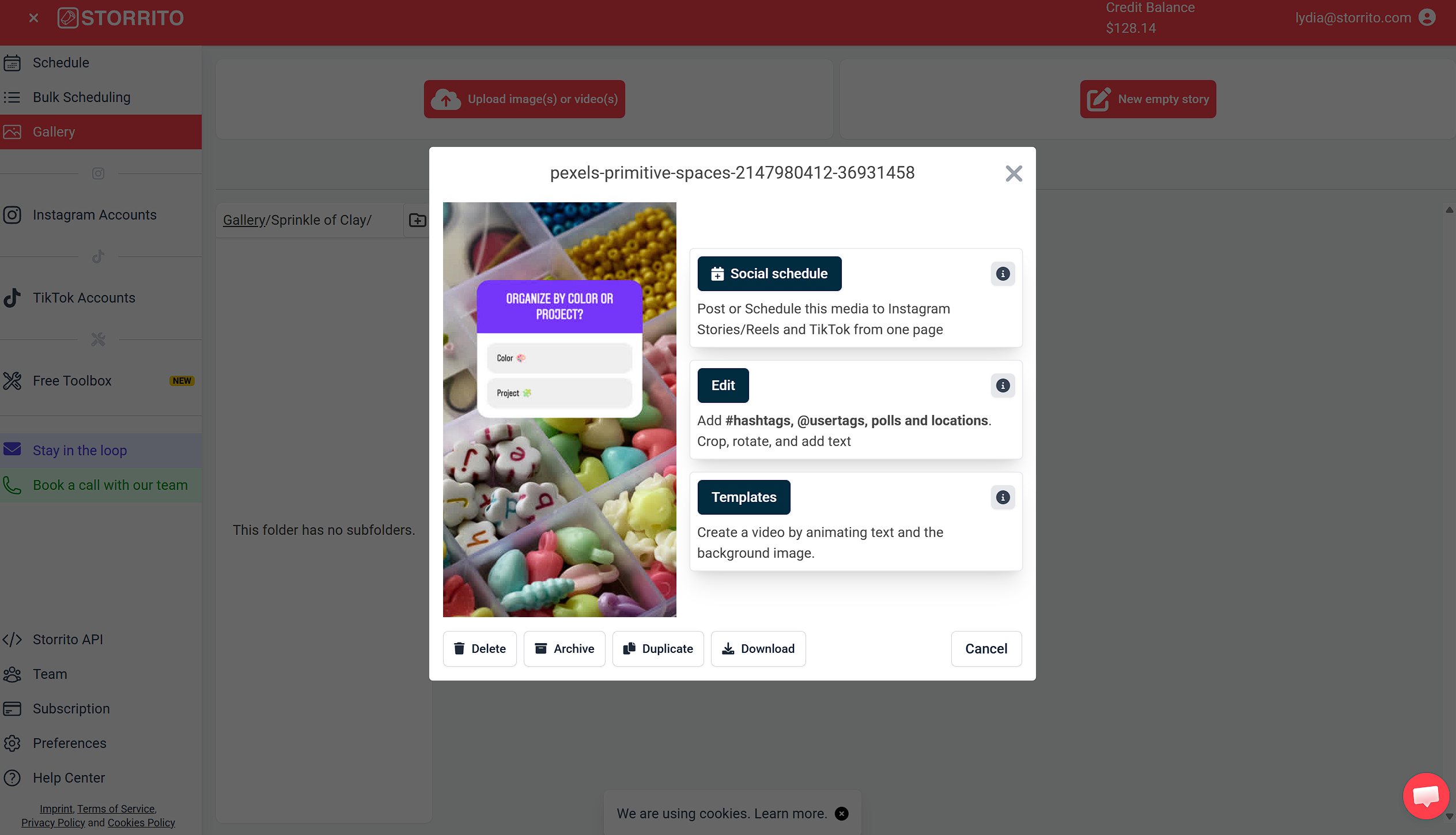
Please note: deleting assets in the gallery does not automatically cancel the Stories scheduled using those assets.
2. Cancel a scheduled Story
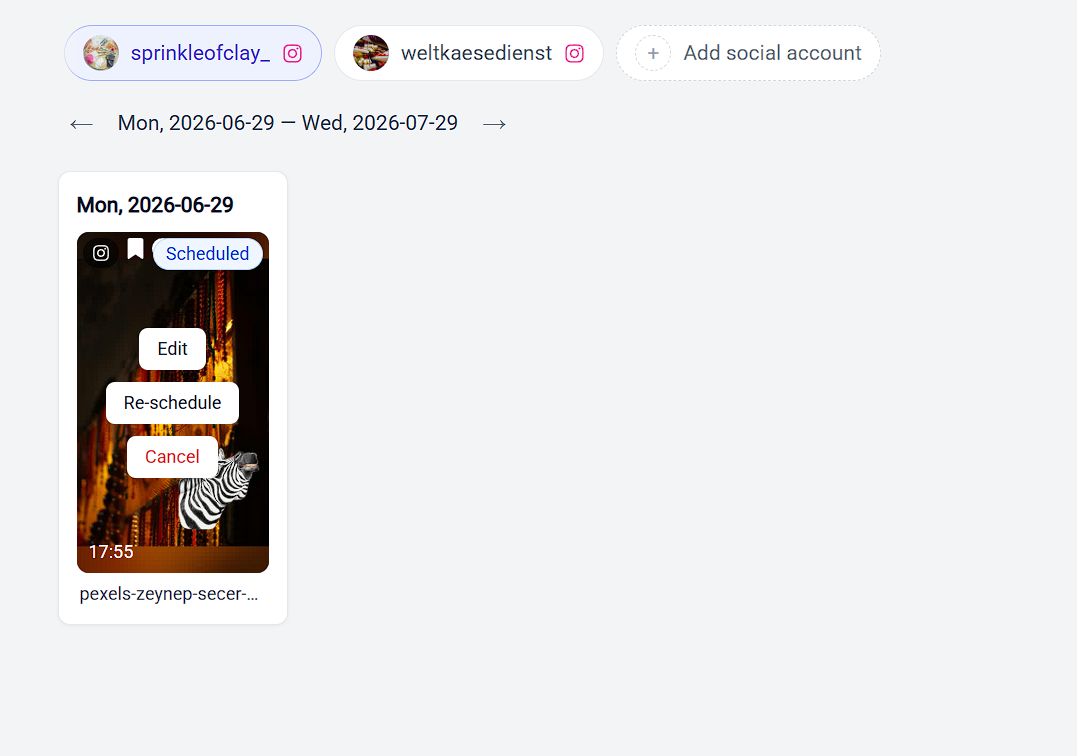
Open the Schedule view and find the Story you no longer want to post. Click the post to reveal its options, then choose Cancel. From the same options you can also Edit the Story or Re-schedule it for a different time.
You can also cancel without leaving the scheduling page. The Scheduling activity list at the bottom of Schedule social post shows every destination the media was sent to, and each one still in the Scheduled state has a Cancel link underneath it. This is useful when a post went to several destinations at once and you only want to stop one of them, since each destination is canceled on its own.
3. Use the bulk scheduling tool to cancel multiple Stories
With the bulk scheduling tool, you can cancel multiple scheduled Stories at the click of a button. Just make sure to click “Save” when you're done!

How to pause Story posting temporarily
If you need to pause posting temporarily, disconnecting your Instagram account on Storrito prevents any pending Stories from publishing until you reconnect. To remove your account connection, navigate to the Instagram Accounts overview, select the account you need to pause, and click “Delete”. Once you reconnect, your scheduled Stories will reappear in the schedule view.
Tools
- Subtitle overlay
- Auto Post Instagram Stories
- How to Upload a Video to Instagram Story from PC
- Schedule Instagram Stories with the Link Sticker
- Instagram bio generator
- Upload and post Instagram Reels from PC
- Subtitle generator
- Instagram grid maker
- Schedule Instagram Stories
- Turn an MP3 into an Instagram Story video
- Can you schedule Instagram stories? Yes, with Storrito.com! (Here's How)
- Instagram Story bingo generator
- Storrito toolbox
- Instagram Story Planner (Scheduler)
- Instagram font generator
- Instagram Story 'this or that' generator
- Schedule Facebook Stories from PC
- Instagram Story Maker Online
- Trim a video
- Instagram carousel maker
- PDF to Instagram carousel
- How to schedule Instagram Reels
- How to add a story in Instagram from PC or Mac?
- Post Instagram Stories from PC
- Instagram Story tier list generator