How To Label AI-Generated Content
Storrito can mark a post as AI-generated when it publishes, so each platform can show its own AI label on it. For Instagram Stories and Reels this is the AI-generated content checkbox on the scheduling page. TikTok and YouTube have their own equivalents, covered further down.
Tick it whenever the image or video was generated or meaningfully altered with AI, including anything you made with Storrito's built-in AI image tool.
Labeling an Instagram Story or Reel
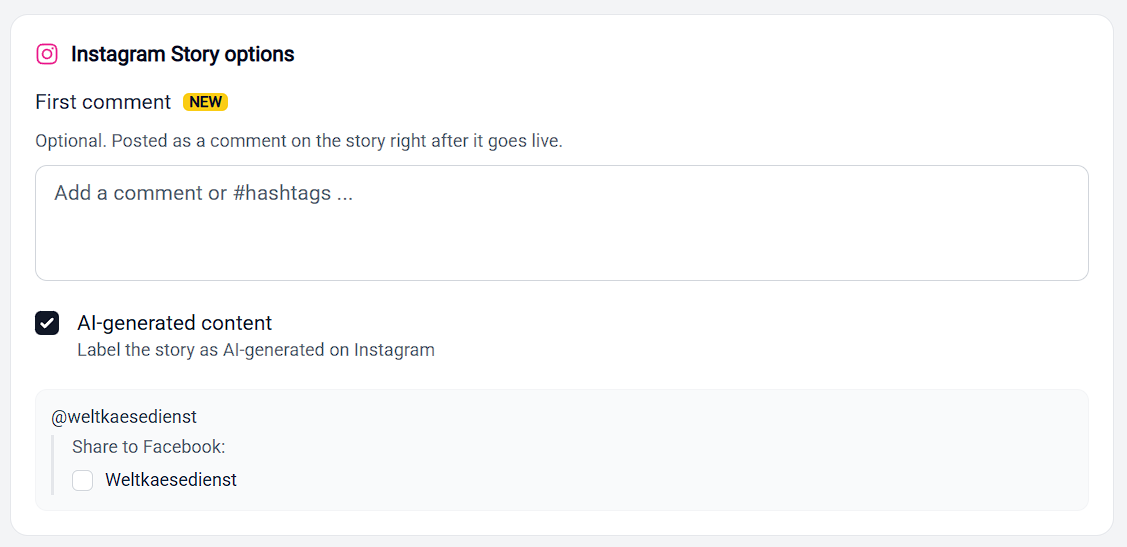
The checkbox sits in the platform options card on Schedule social post, once you have selected your destinations.
Step 1: Under Social accounts, tick your Instagram account under the Instagram Stories heading, the Reels heading, or both.
Step 2: Find the options card for that destination below the Caption / description field.
Step 3: Tick AI-generated content.
The Reel card carries the same checkbox, below Recommend on Facebook and Show Reel in Instagram posts.
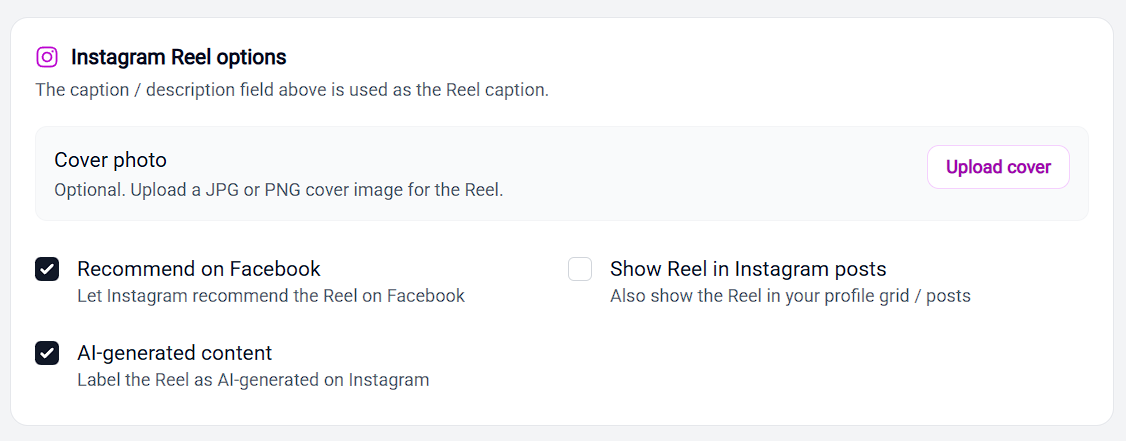
Stories and Reels each have their own checkbox. Ticking it on the Story card does not tick it on the Reel card, so if the same media goes to both, set it on both.
What Storrito does when the label is on
Two things happen automatically:
- The post is sent to Instagram flagged as AI-generated, so Instagram can apply its own label to it
- Storrito writes standard IPTC AI metadata into the media file itself before uploading, so the disclosure travels with the file rather than sitting only in the post
Seeing which posts are labeled
Labeled posts carry an AI badge. You will see it in two places:
- On the post card in the Agenda, stacked under the destination icon in the top left of the thumbnail
- On the entry in the Scheduling activity list on the scheduling page
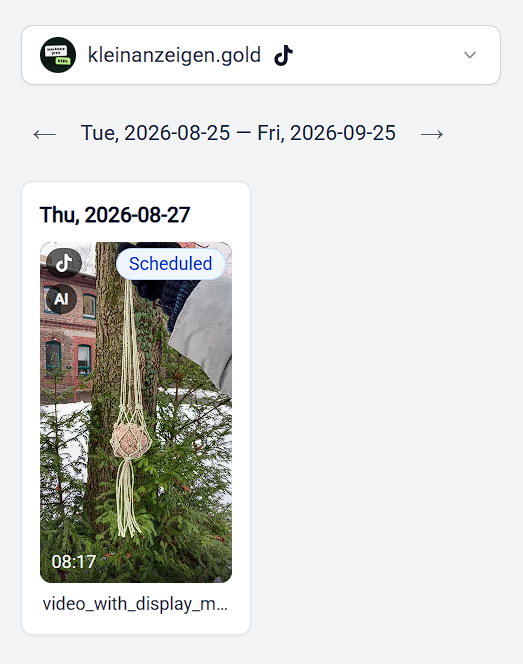
The badge appears whichever platform the post is going to, so labeled Stories, Reels, TikTok posts, Shorts, and Pinterest pins all carry it.
The badge is a quick way to check your scheduling queue before it goes out, particularly when several people schedule into the same account.
Labeling posts in bulk
The Bulk Scheduling table has its own AI column, so you can set the label per row alongside the dates and times. As with any other change in that table, click Save before you leave the page.
The same label on other platforms
Each platform words this differently, and each one is set in its own options card:
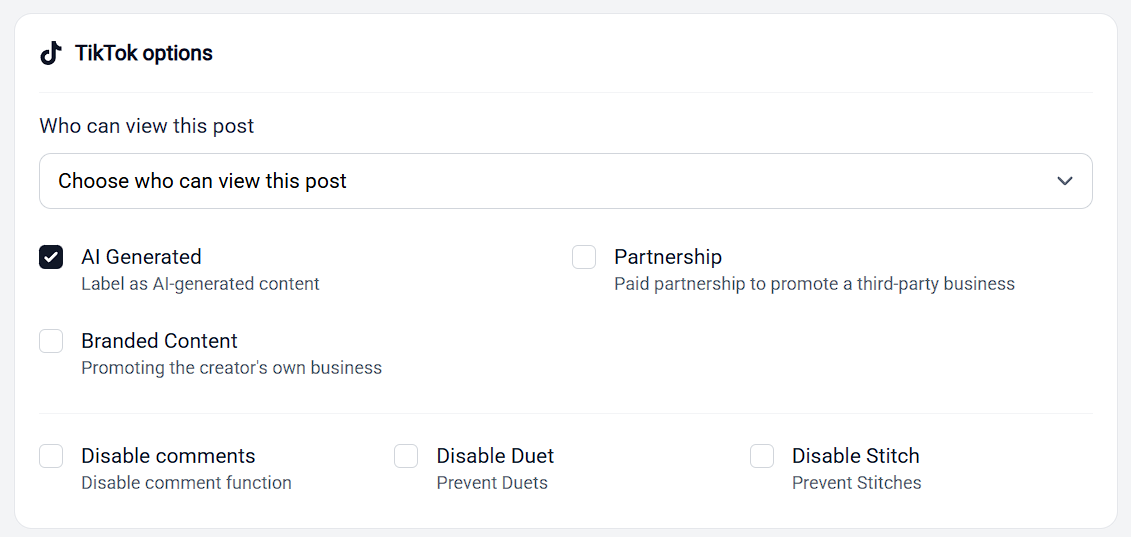
TikTok: tick AI Generated in the TikTok options card. It sits alongside Partnership and Branded Content. See TikTok Integration.
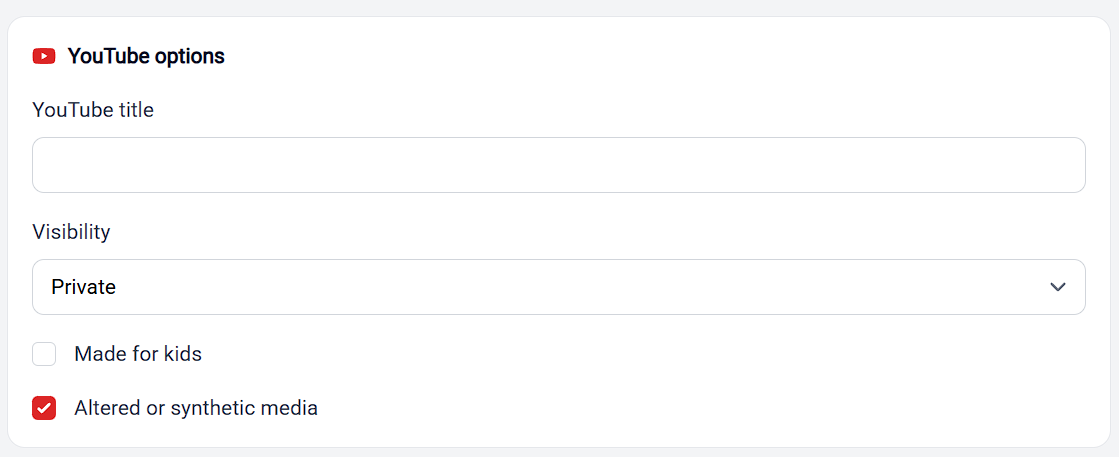
YouTube Shorts: tick Altered or synthetic media in the YouTube options card, below Made for kids. See How To Schedule YouTube Shorts.
Pinterest: tick AI-generated content in the Pinterest options card, below Destination link. Pinterest then shows its AI label on the pin. Storrito sends the label with the pin; it doesn't write AI metadata into the file for Pinterest. See How To Schedule Pinterest Pins.
Facebook, Threads, LinkedIn, and Snapchat don't offer an AI label that Storrito can set, so their options have no such checkbox.
Each platform sets its own disclosure rules for AI content. Labeling from Storrito is how you meet them at the moment you schedule, rather than editing the post once it is already live.
For everything else in the Story and Reel options cards, see How To Schedule Instagram Stories And Reels.
Tools
- Subtitle overlay
- Auto Post Instagram Stories
- How to Upload a Video to Instagram Story from PC
- Schedule Instagram Stories with the Link Sticker
- Instagram bio generator
- Upload and post Instagram Reels from PC
- Subtitle generator
- Instagram grid maker
- Schedule Instagram Stories
- Turn an MP3 into an Instagram Story video
- Can you schedule Instagram stories? Yes, with Storrito.com! (Here's How)
- Instagram Story bingo generator
- Storrito toolbox
- Instagram Story Planner (Scheduler)
- Instagram font generator
- Instagram Story 'this or that' generator
- Schedule Facebook Stories from PC
- Instagram Story Maker Online
- Trim a video
- Instagram carousel maker
- PDF to Instagram carousel
- How to schedule Instagram Reels
- How to add a story in Instagram from PC or Mac?
- Post Instagram Stories from PC
- Instagram Story tier list generator