How To Schedule Facebook Reels And Stories
You can connect a Facebook page to Storrito and schedule Reels and Stories on it, from the same page and the same piece of media as your Instagram, TikTok, and YouTube content.
Connect your Facebook page
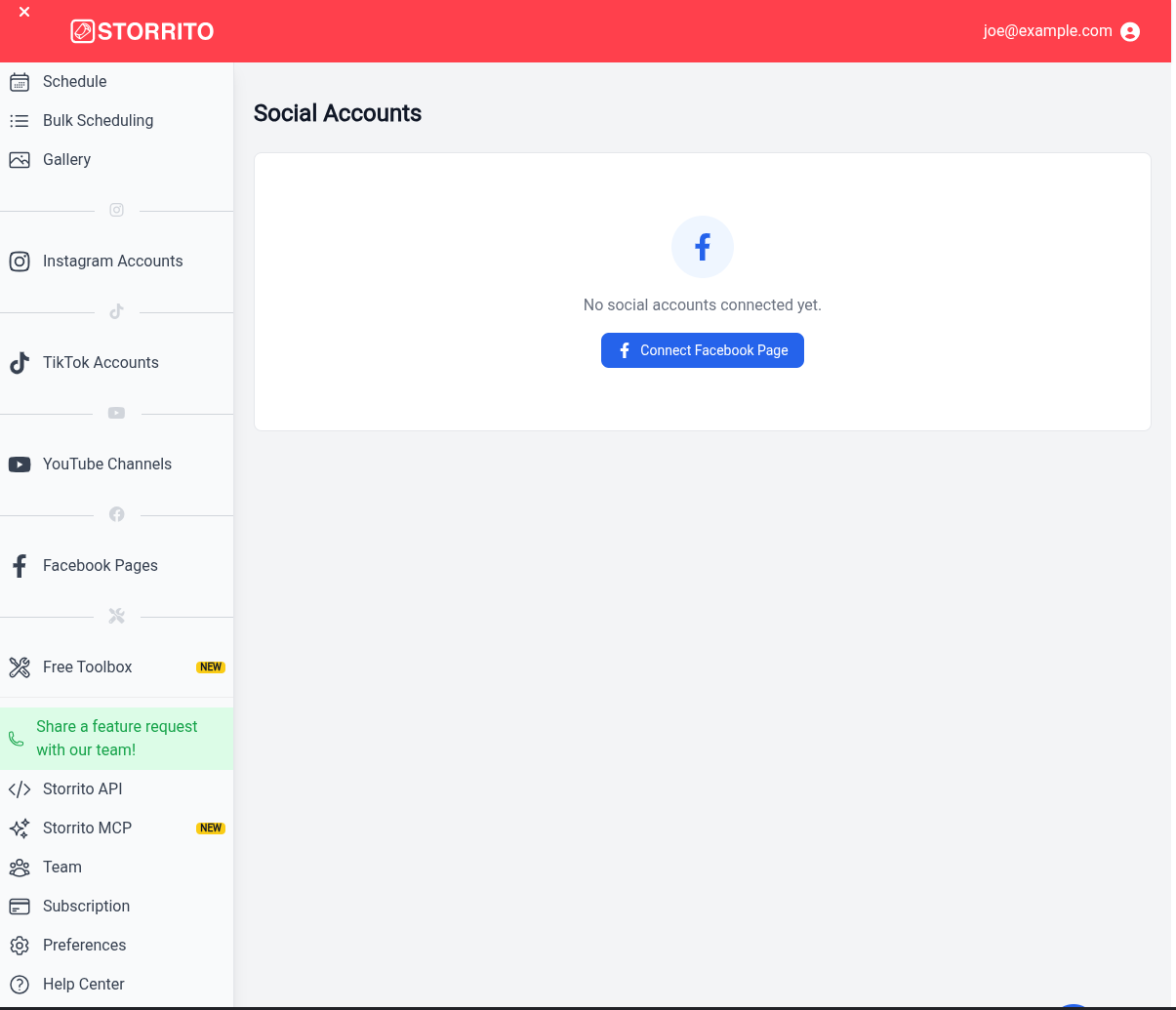
Step 1: Go to Facebook Pages in the left menu and click Connect Facebook Page.
Step 2: Tell Storrito how the page is managed. Facebook only lists the pages that match this choice in the next step.
- Managed in Meta Business Suite — the page belongs to a business portfolio. This is the case for most company pages
- Managed personally — you manage the page from your personal Facebook profile, without a business portfolio
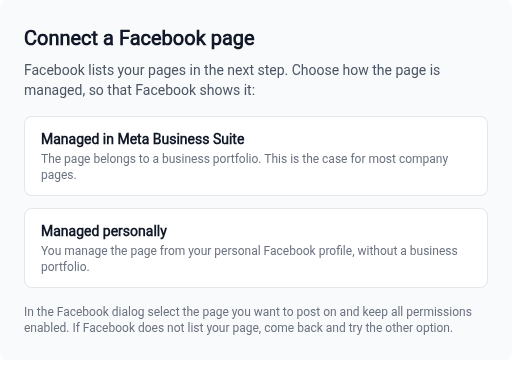
If you are not sure, start with Managed in Meta Business Suite. If Facebook does not list your page, come back and try the other option.
Step 3: In the Facebook dialog, select the pages you want to post on and keep all permissions enabled. Storrito needs every permission Facebook asks for, otherwise the connection fails with Meta reported that not all permissions were granted.
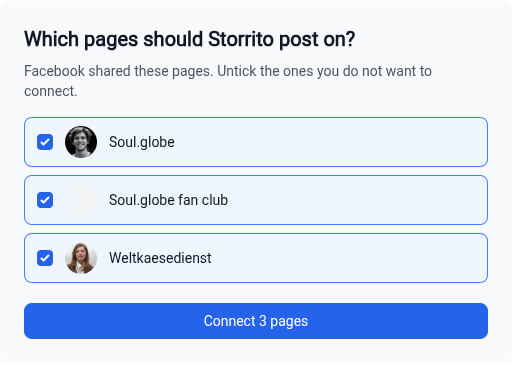
Step 4: Back in Storrito, tick the pages you want to connect. All pages you shared are ticked by default, so untick the ones you don't need and click Connect.
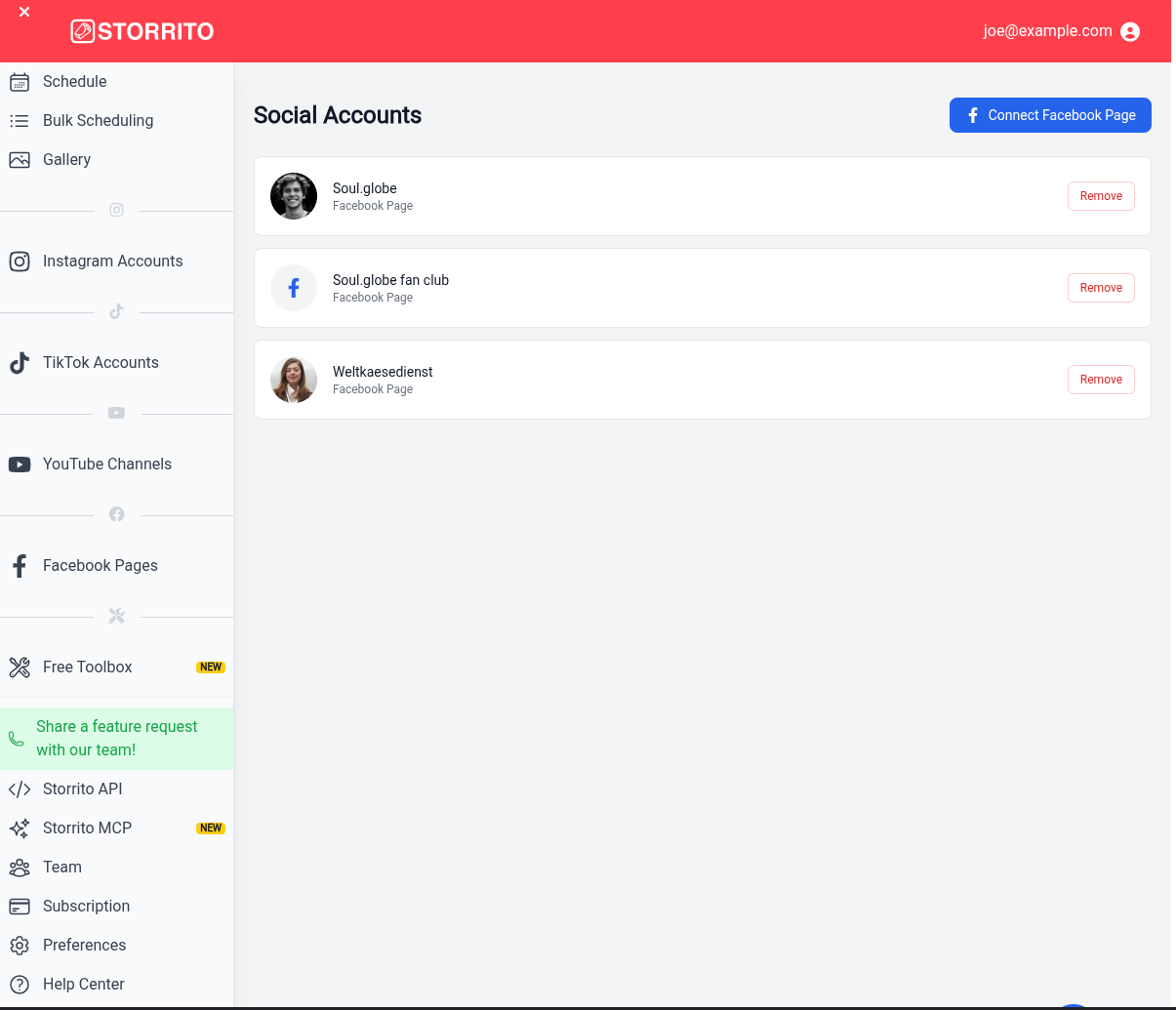
Your pages then show on the Facebook Pages page. Click Remove next to a page to disconnect it from Storrito.
What Facebook accepts
Facebook Reels and Stories need a video. If your media is an image, or the video is still being prepared, the page shows greyed out in the account list with the reason written in amber underneath it.
- Reels can be up to 20 minutes long
- Stories can be at most 60 seconds long
Schedule a Reel or a Story
Step 1: Get your video into Storrito — Upload on the Schedule page, or create it in the editor.
Step 2: Open the scheduling page. From the editor, click Share then Schedule story. From the Gallery, click your video and choose Social schedule.
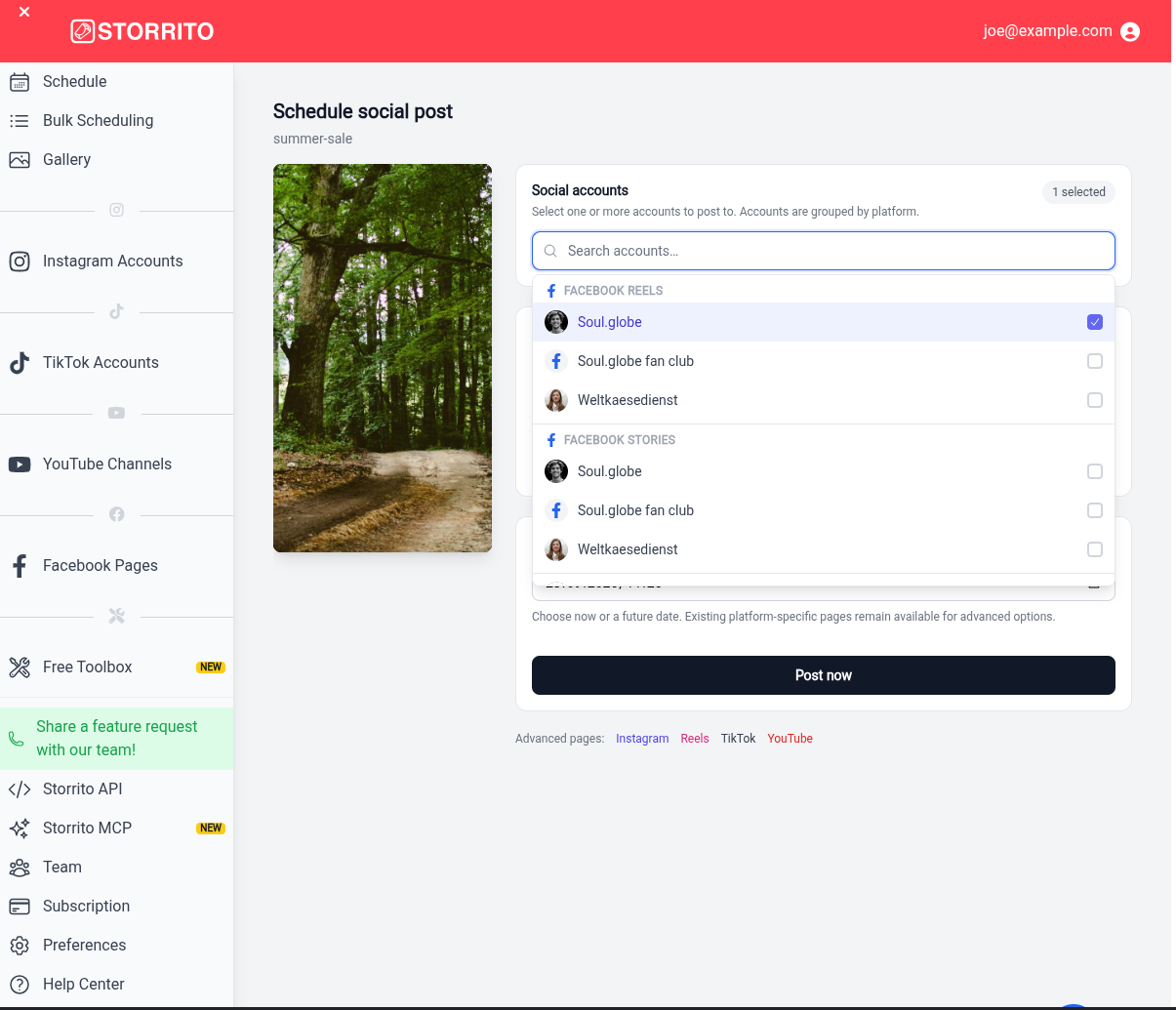
Step 3: Under Social accounts, click Select social accounts.... Each connected page is listed twice: once under Facebook Reels and once under Facebook Stories. Tick the page under the group you want, or under both to publish the same video as a Reel and as a Story.
Step 4: Fill in Caption / description. This becomes the caption of the Reel. Facebook Stories have no caption, so the text is ignored for a Story. The same field feeds Instagram Reel captions, TikTok descriptions, and YouTube Short descriptions, so if you're posting to several platforms at once, you're writing one text for all of them.
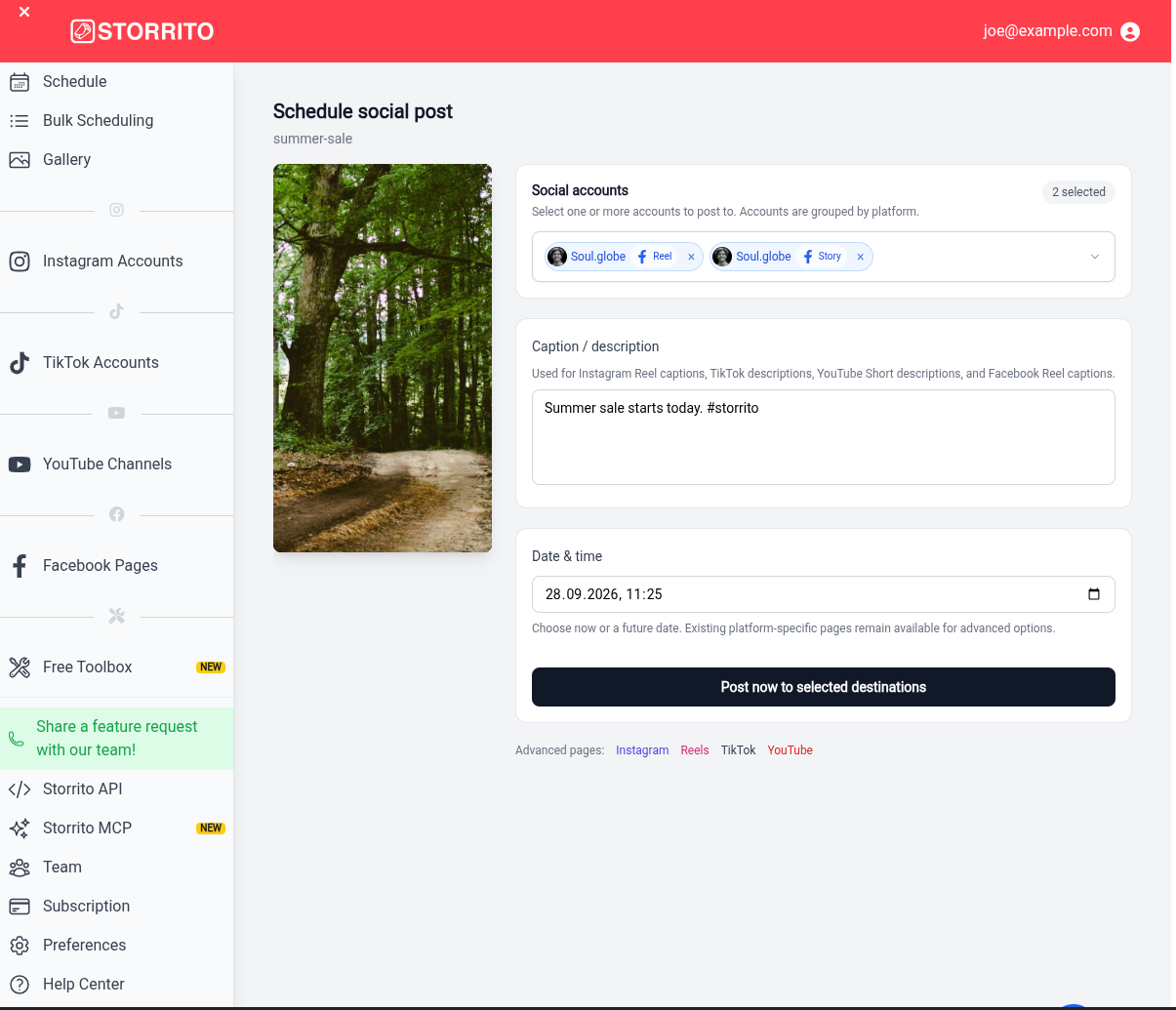
Step 5: Set Date & time and click the button below it. The field arrives prefilled with the current date and time, and the button reads Post now until you change it. Once you pick a different date it becomes Schedule to selected destination(s).
Tracking the post
Scheduling activity shows each Reel and Story moving through Scheduled → In progress → Live. A Reel and a Story of the same video are tracked as two separate entries, because Facebook publishes them separately.
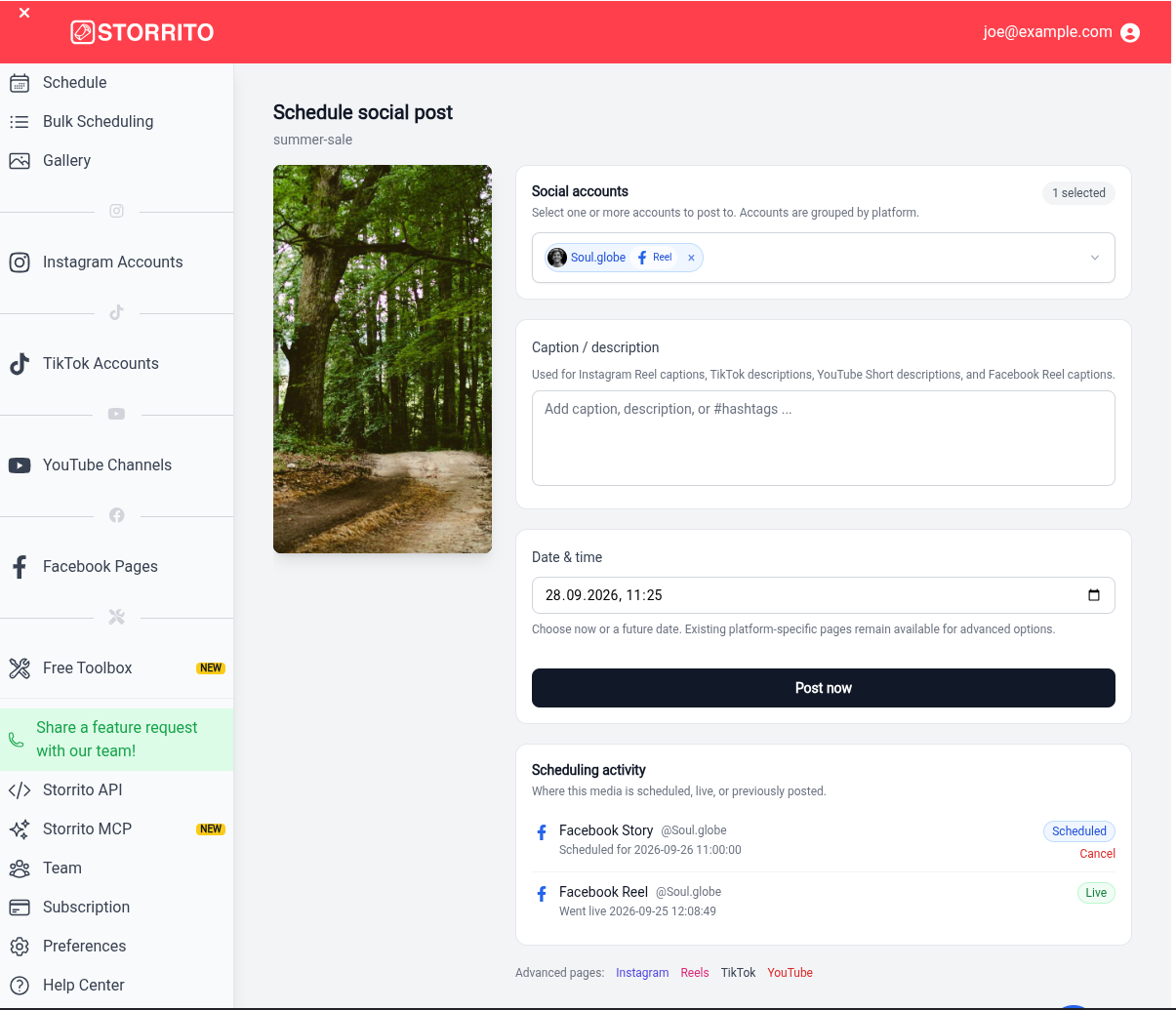
A Cancel link is available while the post is still scheduled. On the Schedule page it appears as a Facebook Reel or Facebook Story card, with Edit, Re-schedule, and Cancel on hover.
If a page shows as disconnected
Facebook can revoke Storrito's access to a page, for example after you change your Facebook password, remove Storrito from your Facebook settings, or lose your role on the page. Storrito notices this when a post fails: the post shows as Failed in the Scheduling activity with the note that the page is disconnected, and the page is marked Disconnected on the Facebook Pages page. Click Reconnect next to the page and go through the connect steps again, then schedule the failed post once more. A failed post is not retried on its own.
Like everything else Storrito schedules, a Reel or a Story only publishes if your credit balance is positive when it's due. See How Scheduling Works In Storrito for the rules that apply to every platform.
Tools
- Subtitle overlay
- Auto Post Instagram Stories
- How to Upload a Video to Instagram Story from PC
- Schedule Instagram Stories with the Link Sticker
- Instagram bio generator
- Upload and post Instagram Reels from PC
- Subtitle generator
- Instagram grid maker
- Schedule Instagram Stories
- Turn an MP3 into an Instagram Story video
- Can you schedule Instagram stories? Yes, with Storrito.com! (Here's How)
- Instagram Story bingo generator
- Storrito toolbox
- Instagram Story Planner (Scheduler)
- Instagram font generator
- Instagram Story 'this or that' generator
- Schedule Facebook Stories from PC
- Instagram Story Maker Online
- Trim a video
- Instagram carousel maker
- PDF to Instagram carousel
- How to schedule Instagram Reels
- How to add a story in Instagram from PC or Mac?
- Post Instagram Stories from PC
- Instagram Story tier list generator