How To Organize Your Gallery With Folders
The Gallery holds every image, video, and design in your Storrito account, including anything you upload and anything you build in the editor. Folders are how you keep that list manageable once it grows past a screenful.
The Gallery has two tabs at the top, Gallery and Archive. Everything below happens on the Gallery tab.
Creating a folder
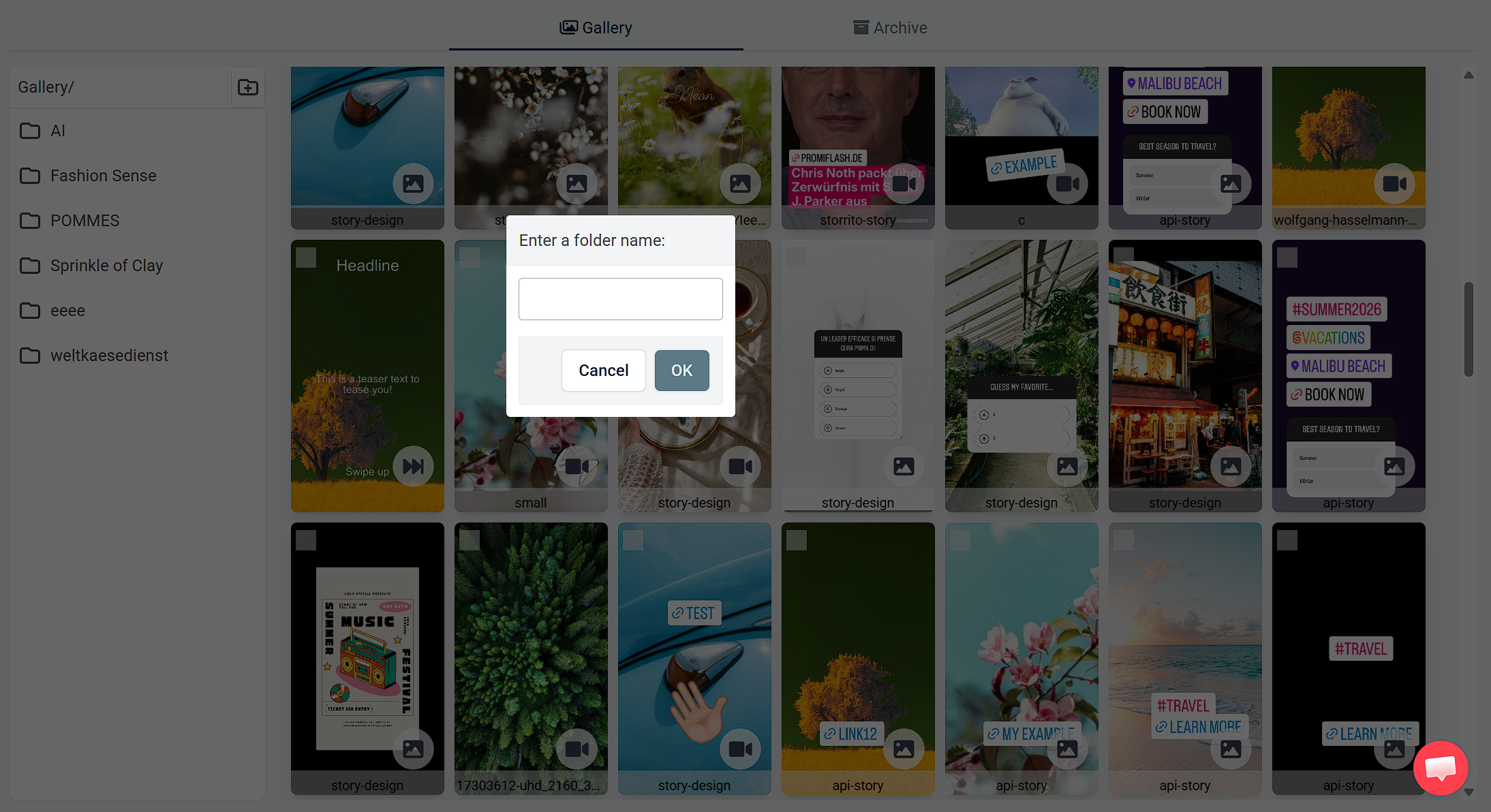
The folder panel runs down the left side of the Gallery, headed Gallery/. Click the new folder button in the top right of that panel and Storrito asks you to Enter a folder name. Type it and click OK. Campaign names, months, and client names all work well, since those are the groupings people usually search by later.
Click a folder to open it. The heading becomes a path, so Gallery/New Releases/ tells you where you are, and folders can hold folders of their own.
Moving media into a folder
There are two ways, and they do the same thing.
By dragging: drag the item onto the folder you want it in.
By selecting: tick the checkbox in the top left of each item you want to move. A bar appears along the bottom showing how many you have picked, with Move, Archive, and Delete. Click Move, choose the destination folder from the list, then click Move here.
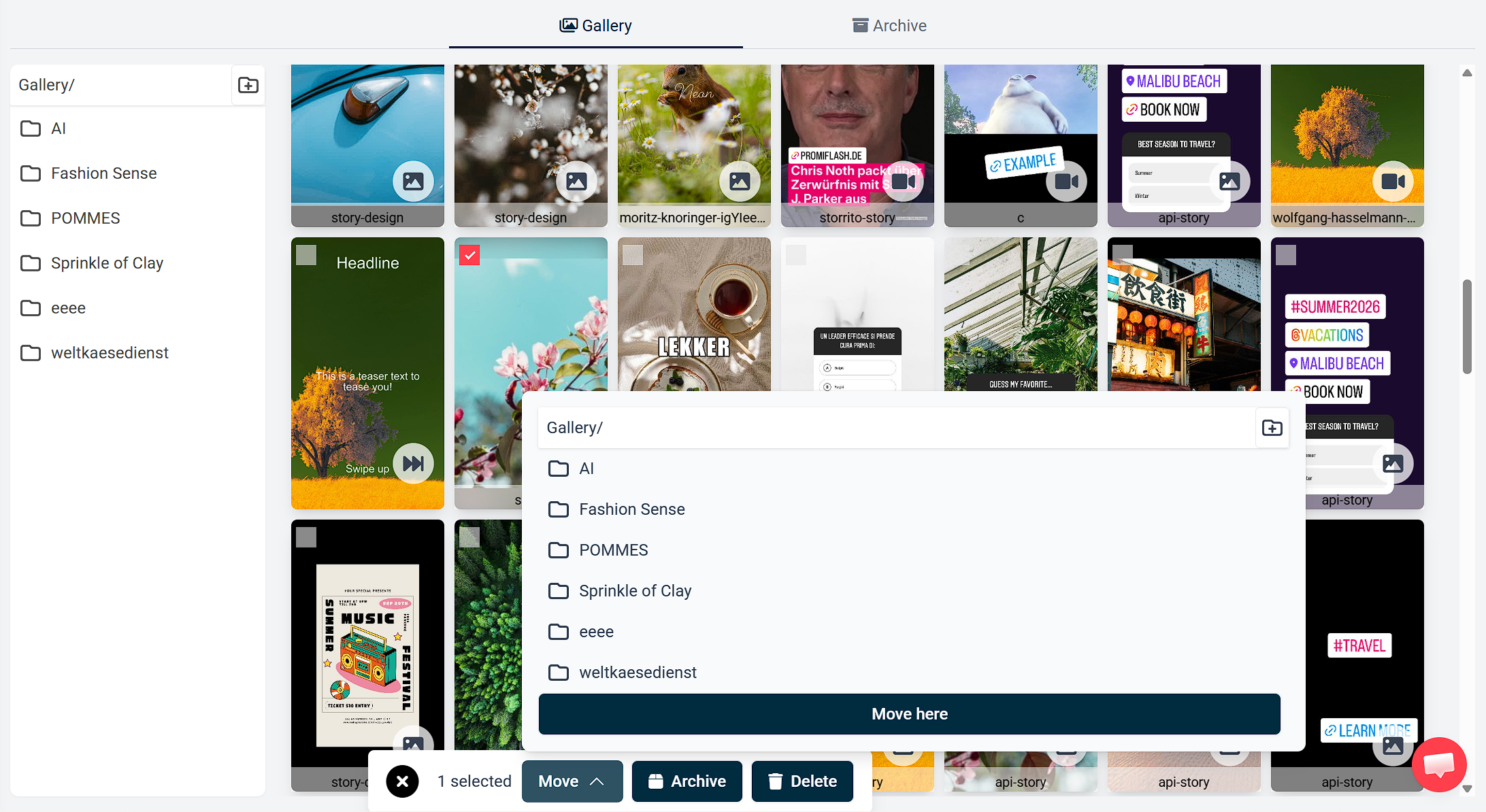
The selecting route is the quicker one when you are filing a batch, since the counter lets you gather everything first and move it in one go.
Using folders for reusable designs
Folders are most useful as a template store. Duplicate a design you expect to reuse, keep the copy in its own folder, and you can open it, change the parts that differ, and schedule it without rebuilding the layout each time.
This works particularly well for recurring formats, like a weekly poll Story or a fixed announcement frame.
Deleting a folder
Right click the folder name and select Delete.
Deleting a folder only removes the assets from the Gallery. It doesn't affect your scheduled creatives. To stop a post from publishing you cancel the post itself, which is covered in How To Cancel Or Delete Stories.
Folders or the Archive
The two solve different problems:
- Folders group media you are still working with, so you can find it quickly
- The Archive moves finished media out of the Gallery altogether, without deleting it. It gets its own tab at the top, and archived items stop appearing in the Add from gallery picker in Bulk Scheduling
If the Gallery is cluttered with old campaigns you no longer schedule from, archive them rather than filing them. See How To Archive Old Stories.
Scheduling straight from a folder
You do not need to leave the Gallery to schedule. Click any item to open its options and choose Social schedule under Post / Schedule to social platforms, which opens the scheduling page with that media already loaded. See How Scheduling Works In Storrito.
Tools
- Subtitle overlay
- Auto Post Instagram Stories
- How to Upload a Video to Instagram Story from PC
- Schedule Instagram Stories with the Link Sticker
- Instagram bio generator
- Upload and post Instagram Reels from PC
- Subtitle generator
- Instagram grid maker
- Schedule Instagram Stories
- Turn an MP3 into an Instagram Story video
- Can you schedule Instagram stories? Yes, with Storrito.com! (Here's How)
- Instagram Story bingo generator
- Storrito toolbox
- Instagram Story Planner (Scheduler)
- Instagram font generator
- Instagram Story 'this or that' generator
- Schedule Facebook Stories from PC
- Instagram Story Maker Online
- Trim a video
- Instagram carousel maker
- PDF to Instagram carousel
- How to schedule Instagram Reels
- How to add a story in Instagram from PC or Mac?
- Post Instagram Stories from PC
- Instagram Story tier list generator