Facebook Crossposting Troubleshooting
My Facebook Page Isn't Showing In Storrito
When you first connect your Instagram account to Storrito, the Facebook Pages linked to your Instagram may not appear immediately. To resolve this, follow the steps below:
- Go to the Instagram Accounts panel in Storrito
- Click on the Instagram account with the missing Facebook Page
- Select the Sync button, next to the account name at the top of the window
- Wait for the sync process to complete (this may take some time)
- The linked Facebook Pages should now appear
For a video walk-through, check out this explanation.
My Story Isn't Sharing To My Facebook Page
Step 1: Make sure that the Facebook Page selected in Storrito matches the one you've chosen on Instagram. Here's how to check:
- Open Instagram and go to Settings
- Tap on Accounts Center
- Select Connected experiences
- Choose Sharing across profiles
- Select your Instagram account, then choose the Facebook Page
If your Facebook Page still isn't showing in Storrito, go to Storrito Instagram Connect, select your Instagram account, and click the Sync button:

Step 2: Make sure the Stories toggle is enabled for crossposting.
Meta's Accounts Center has separate toggles for posts, stories, and reels. Even if sharing looks enabled at the account level, Stories will not crosspost if the Stories toggle itself is off. This is a common cause of Stories silently failing to share while posts and reels keep working.
- Open Instagram and go to Settings
- Tap on Accounts Center
- Select Connected experiences
- Choose Sharing across profiles
- Select your Instagram account, then the Facebook Page
- Confirm that the Stories toggle is on alongside Posts and Reels
Step 3: Verify Facebook Page Connection in Storrito.
- Go to the “Instagram Accounts” tab in Storrito
- Under “Account Information,” ensure that the correct Facebook Page is displayed
- If the correct page isn't listed, click Sync to refresh the connection
Step 4: Check for Instagram-Specific Issues.
If the correct Facebook Page is linked and the problem persists, it may be an issue with the Instagram app itself.
To confirm this:
- Open the Instagram app on your phone (ensure you're using the Instagram app, not tools like Meta Business Suite)
- Post a story from Instagram with the Facebook crossposting option enabled
- If the story still doesn't appear on your Facebook Page, it is likely an Instagram bug, which we cannot fix directly
For potential workarounds, follow the instructions in this article: How to Fix Instagram Not Sharing to Facebook
Step 5: Re-link Facebook and Instagram.
Try re-linking your Facebook and Instagram accounts by following these steps:
- Un-link Instagram from Facebook
- Un-link Facebook from Instagram
- Log out of both Instagram and Facebook
- Log back into Instagram
- Re-connect your Facebook profile to Instagram
My Instagram Posts Aren't Sharing To Facebook At All
If nothing is reaching your Facebook Page, the link between the two accounts is usually the cause rather than Storrito:
- Check the account connection: open Instagram and go to Settings → Accounts Center → Linked Accounts, and make sure Facebook is connected
- Check the crossposting settings: confirm that sharing Instagram posts to Facebook is switched on
- Log out and back in: signing out of both accounts and back in refreshes the connection
- Update your apps: make sure both Facebook and Instagram are up to date
General Things Worth Trying
If the steps above haven't helped:
- Clear the cache or app data for the Facebook and Instagram apps
- Uninstall and reinstall both apps if the problem continues
- Check that your internet connection is stable
- Report the problem to Facebook through the support section in the app
I Still Can't Share My Story To Facebook
If you're still having issues, use Meta Business Suite to check if your Instagram account and Facebook Page are properly linked.
Here's how:
Step 1: Go to Meta Business Suite and log in.

Step 2: Click on Settings.
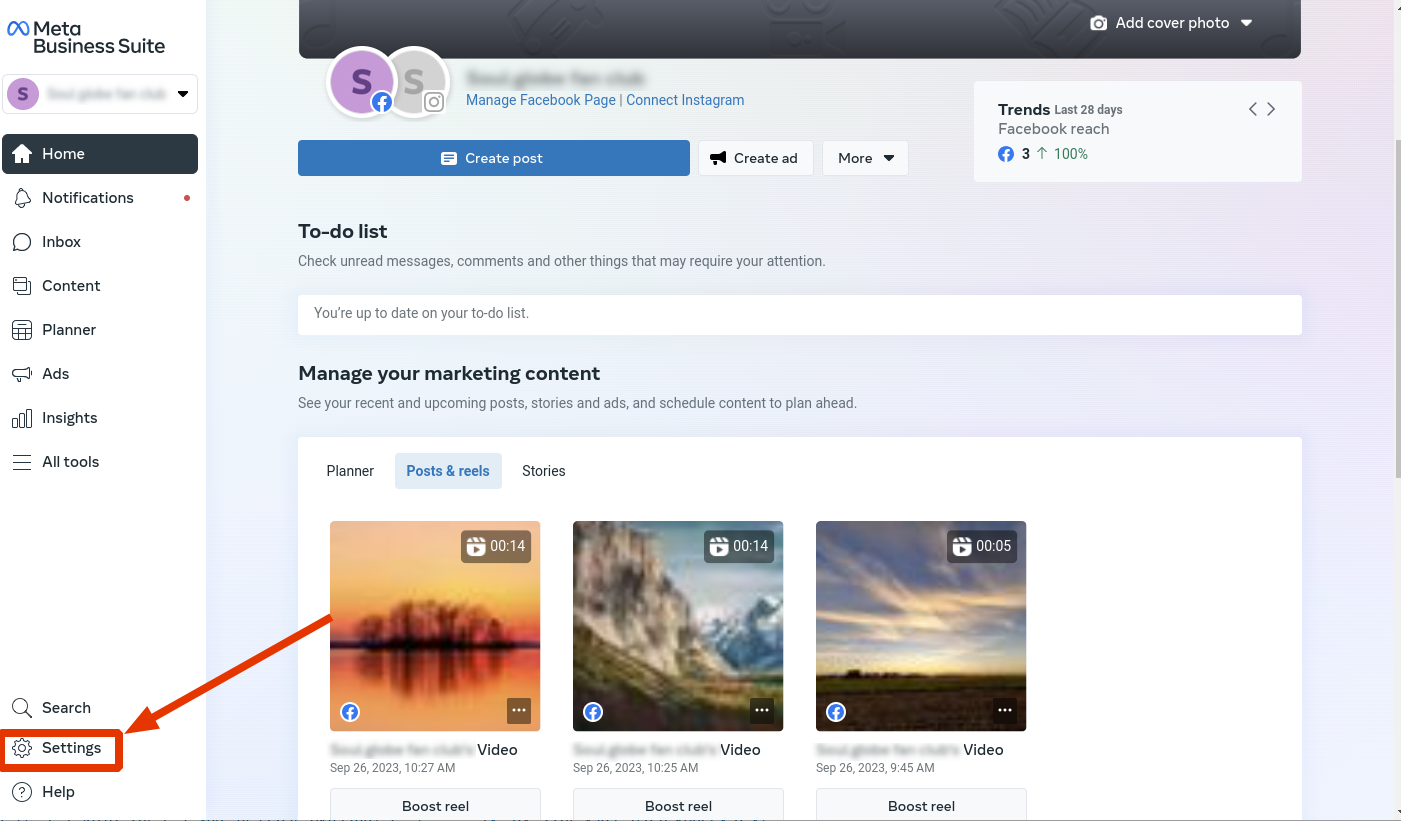
Step 3: Go to Business Assets, filter for Pages, find the Facebook Page you want to use, and click Connect assets.

Step 4: Click Instagram Account, follow the instructions, and log in to the Instagram account you want to use.
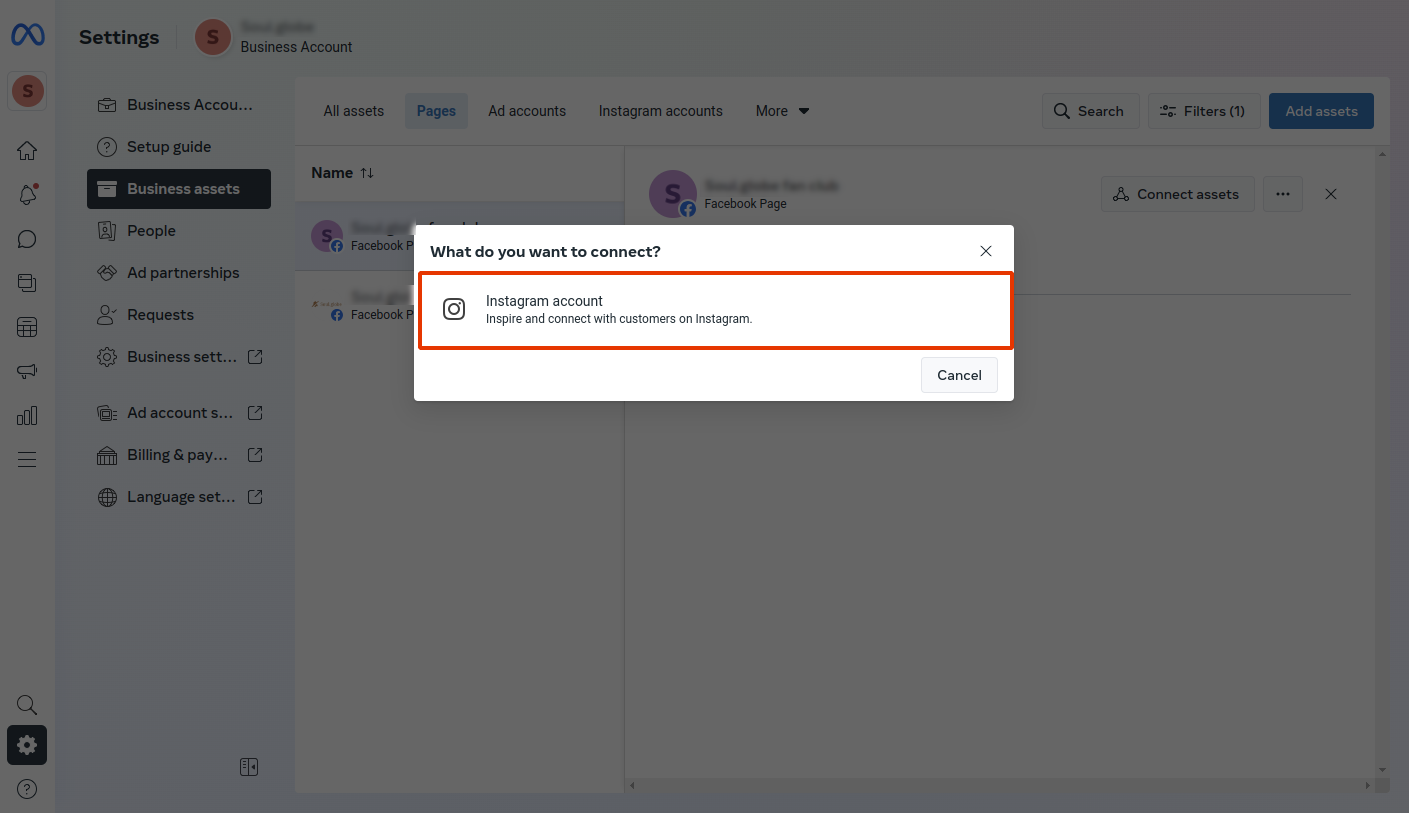
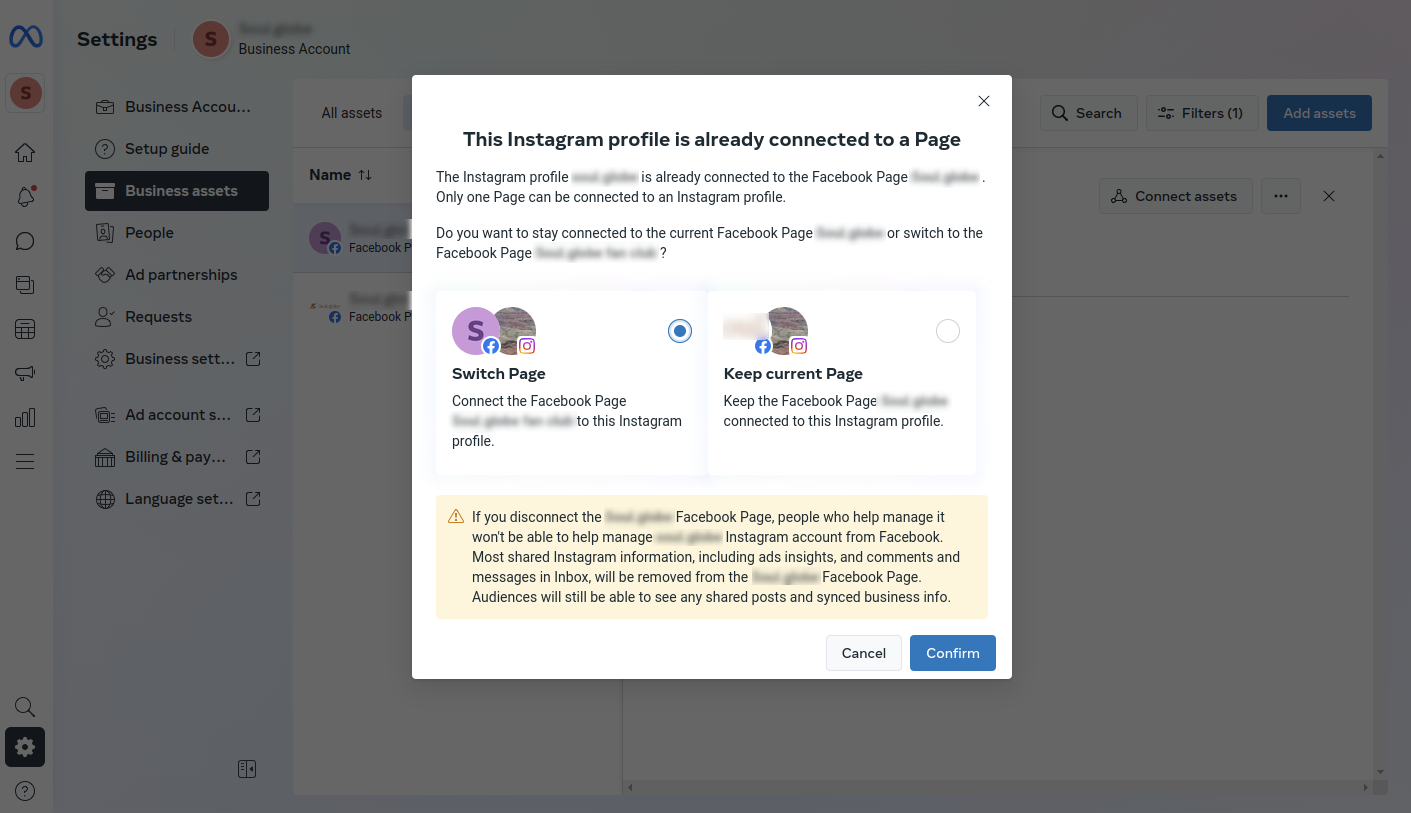
Step 5: If your Instagram account is already connected, you'll be prompted to confirm or switch accounts.
Step 6: Finally, return to Storrito Instagram Connect, select your Instagram account, and click Sync.
The Share To Facebook Option Isn't Showing When I Schedule
The Share to Facebook: row in the Instagram Story options card only renders when Storrito has a Facebook link on file for that account. If no link is found, the row is simply absent — there's no message on the scheduling page explaining why.
Fix it by syncing:
- Open Instagram Accounts in Storrito
- Click the account
- Click Sync
- Reopen the scheduling page
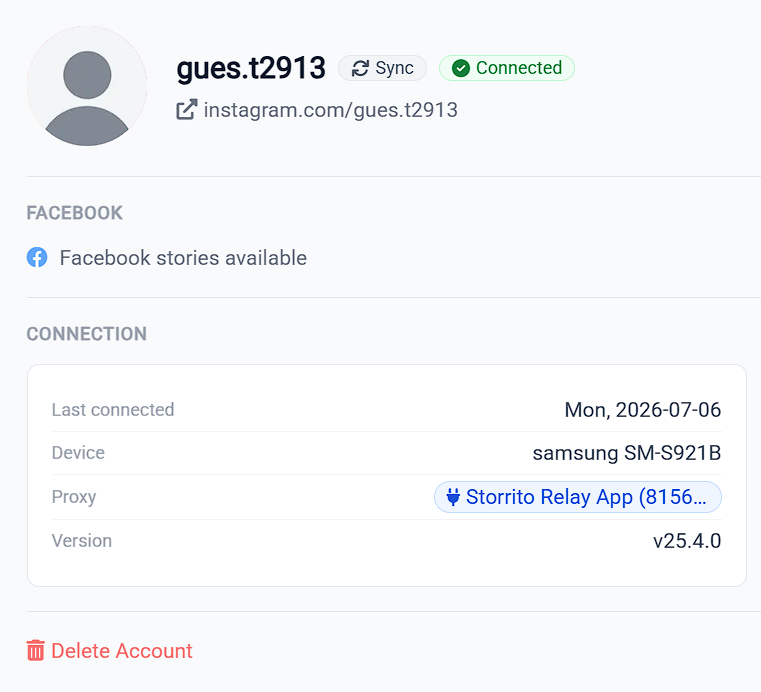
While you're in the account window, check the FACEBOOK section. If it names the linked destination with its type in brackets, for example Soul.globe (PAGE), Storrito has the connection.
If it only says Facebook stories available, Storrito has no Facebook destination on file. Read that one carefully — it sounds like a confirmation, but it is the state you are trying to get out of.
It does not tell you which of two things went wrong, so check both. Either the accounts were never linked on Instagram's side, in which case follow How To Set Up Facebook Crossposting For Instagram Stories; or the link exists and Storrito has not picked it up, in which case confirm on Instagram which Page is selected for sharing and run Sync again.
My Story Posted To Instagram But Not To Facebook
Instagram and Facebook are separate steps in a single posting attempt, and the Instagram step comes first. If Instagram rejects the crossposting configuration at the moment of posting, the Story still publishes to Instagram normally and the Facebook mirror is skipped. You get a successful Story and no Facebook post, with no failure shown against the Story.
When that happens, work through the checks above — usually the linked page changed, the Stories toggle in Meta's Accounts Center got switched off, or the accounts need re-linking. Then run Sync in Storrito before scheduling the next one.
Recommend On Facebook Isn't Crossposting
The Recommend on Facebook checkbox in the Instagram Reel options card is a different feature and is on by default. It lets Instagram recommend your Reel to people browsing Facebook. It does not post the Reel to a Facebook Page.
Crossposting to a Page applies to Stories only, via the Share to Facebook: checkbox in the Instagram Story options card.
Tools
- Subtitle overlay
- Auto Post Instagram Stories
- How to Upload a Video to Instagram Story from PC
- Schedule Instagram Stories with the Link Sticker
- Instagram bio generator
- Upload and post Instagram Reels from PC
- Subtitle generator
- Instagram grid maker
- Schedule Instagram Stories
- Turn an MP3 into an Instagram Story video
- Can you schedule Instagram stories? Yes, with Storrito.com! (Here's How)
- Instagram Story bingo generator
- Storrito toolbox
- Instagram Story Planner (Scheduler)
- Instagram font generator
- Instagram Story 'this or that' generator
- Schedule Facebook Stories from PC
- Instagram Story Maker Online
- Trim a video
- Instagram carousel maker
- PDF to Instagram carousel
- How to schedule Instagram Reels
- How to add a story in Instagram from PC or Mac?
- Post Instagram Stories from PC
- Instagram Story tier list generator