How Scheduling Works In Storrito
Everything you publish through Storrito is scheduled from one page: Schedule social post. You pick one piece of media, choose which accounts should receive it, fill in the options each platform needs, and set a time. This article covers the parts that work the same way for every platform, and links to the platform guides for the parts that don't.
Getting to the scheduling page
There are two routes, and they end up in the same place.
From the editor: when your design is ready, click Share in the top right, then choose Schedule story in the Share Your Story panel. Storrito saves the design first, then opens the scheduling page.
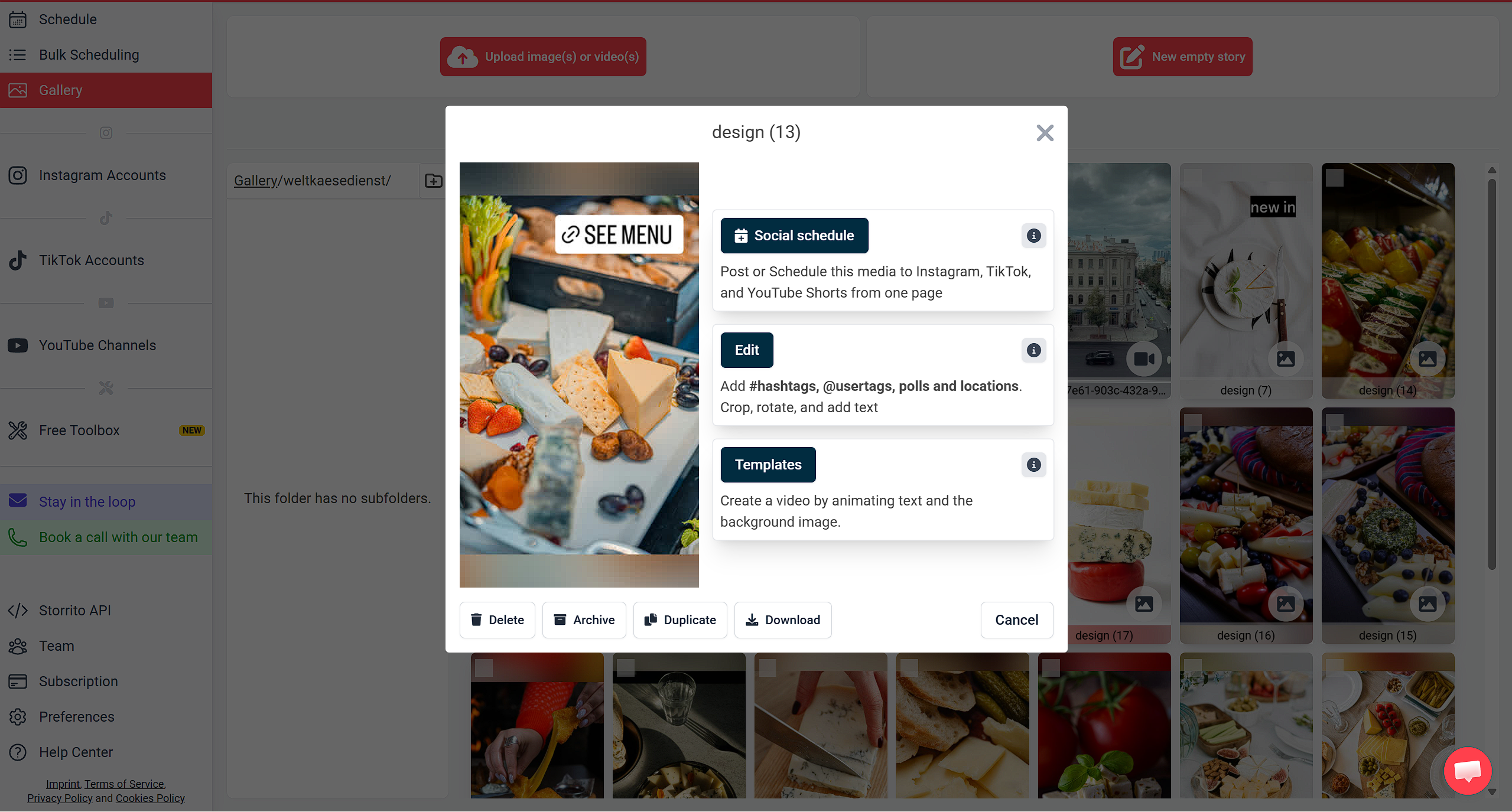
From the Gallery: click your media to open its options, then choose Social schedule under Post / Schedule to social platforms.
If you don't have any media yet, use Upload on the Schedule page to bring in an existing image or video, or + New Story to design one from scratch.
Choosing where it goes
Under Social accounts, click Select social accounts... to open the list. It opens as a search box with the accounts listed underneath, grouped under headings like INSTAGRAM STORIES, REELS, and TIKTOK.
The same account can appear under more than one heading. An Instagram account shows up under both INSTAGRAM STORIES and REELS, because those are two separate destinations — ticking one doesn't tick the other.
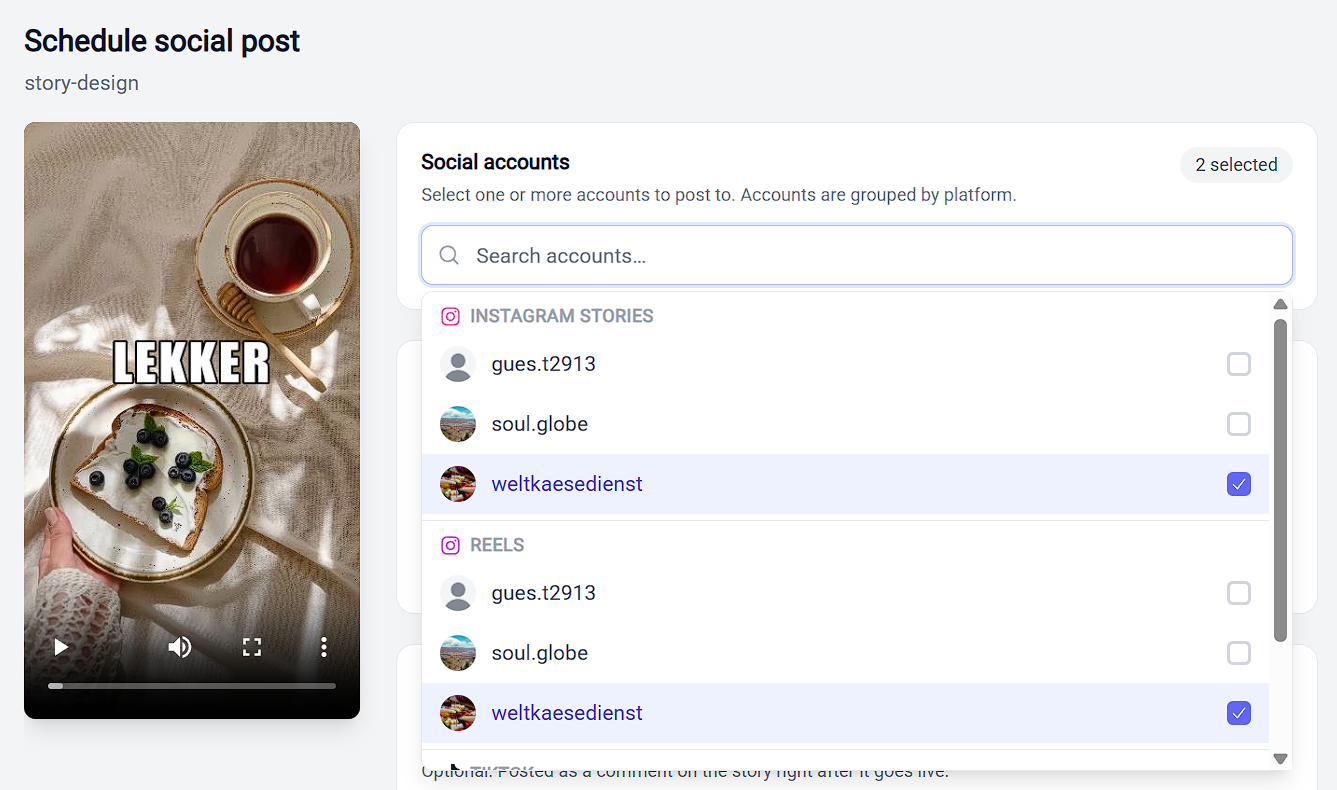
Tick as many as you need, across as many platforms as you need. The counter in the top right of the card keeps track. Type in the search box to filter a long list, and scroll to the bottom for Connect account if you need to add one without leaving the page.
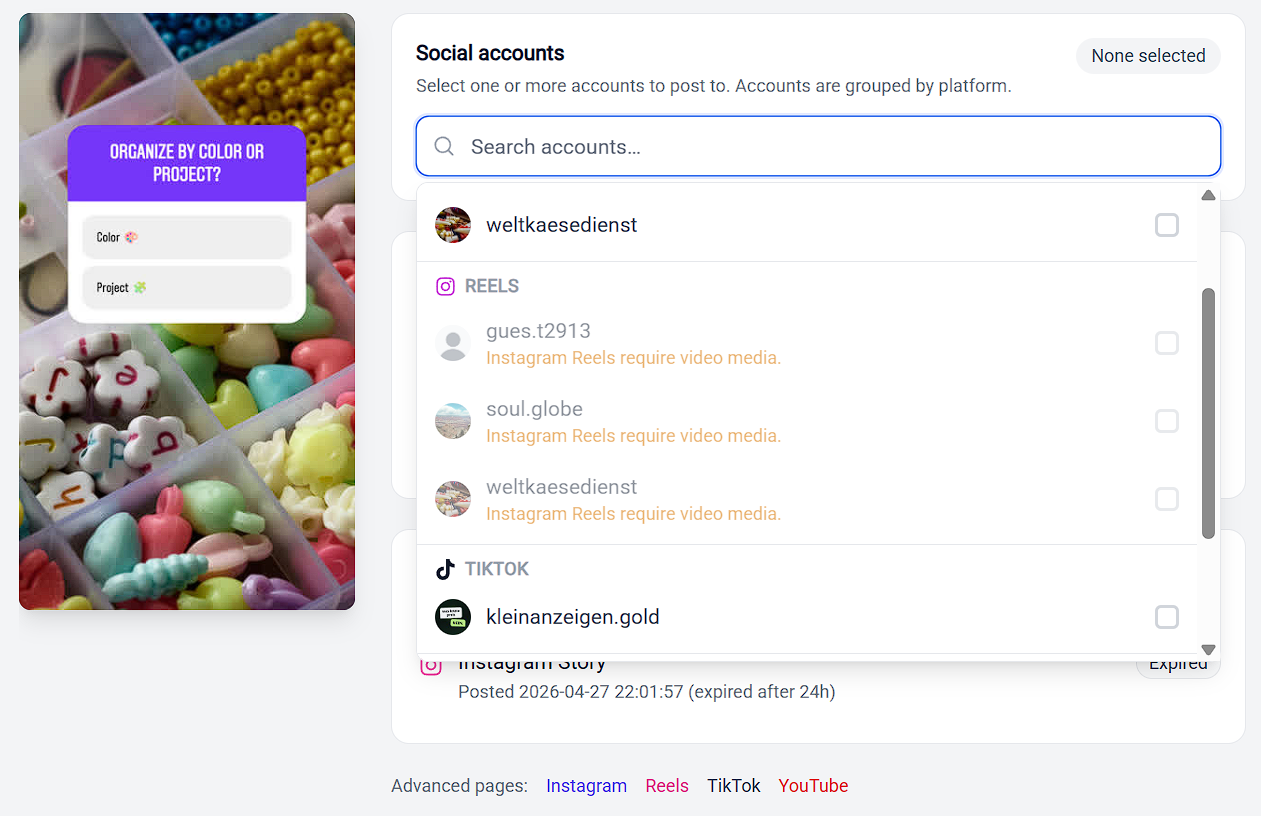
If an account is greyed out, the reason is written in amber underneath its name. Usually the media is the wrong type for that destination. Schedule an image, for instance, and every Reels entry greys out with the note Instagram Reels require video media. Reels and YouTube Shorts both need video, while TikTok stays available, since it accepts image posts too.
YouTube Shorts also need a video of at most 3 minutes, so a longer video greys the channel out even though it's video.
Writing a caption or description
The text input field Caption/Description allows you to enter a caption or description for all post types. This means that if you schedule simultaneously to Instagram Reels and to YouTube Shorts, you can use the same text for both.
Since Instagram Stories do not have a description or caption feature, the text input field will not be displayed if Instagram Stories is your only destination.
If you select Instagram Stories and TikTok Posts, for example, the description will only appear on the published TikTok post and not the Instagram Story.
Please be aware that the text input field will not limit the amount of characters you enter, so make sure that you adhere to platform rules regarding character limits. Storrito doesn't yet check text input against each destination's own caption or description limit, so a platform that enforces a shorter limit may cut it off or reject the post rather than accept it in full. Threads, LinkedIn, Pinterest, and Snapchat Spotlight are the exception: Storrito shortens a caption that is too long for them (500 characters for Threads, 3,000 for LinkedIn, 800 for Pinterest, 160 for Snapchat Spotlight) and tells you so under the caption field.
If you're posting the same text to several platforms at once, keep it within the shortest limit among them.
Platform options
Every destination you tick adds its own options card below the caption field. Each one is covered in its own guide:
- How To Schedule Instagram Stories And Reels
- TikTok Integration
- How To Schedule YouTube Shorts
- How To Schedule Facebook Reels And Stories
- How To Schedule Threads Posts
- How To Schedule LinkedIn Posts
- How To Schedule Snapchat Stories And Spotlight
- How To Schedule Pinterest Pins
Every platform also offers a way to declare that the media was made with AI. That is covered in one place, in How To Label AI-Generated Content.
Post now or schedule for later
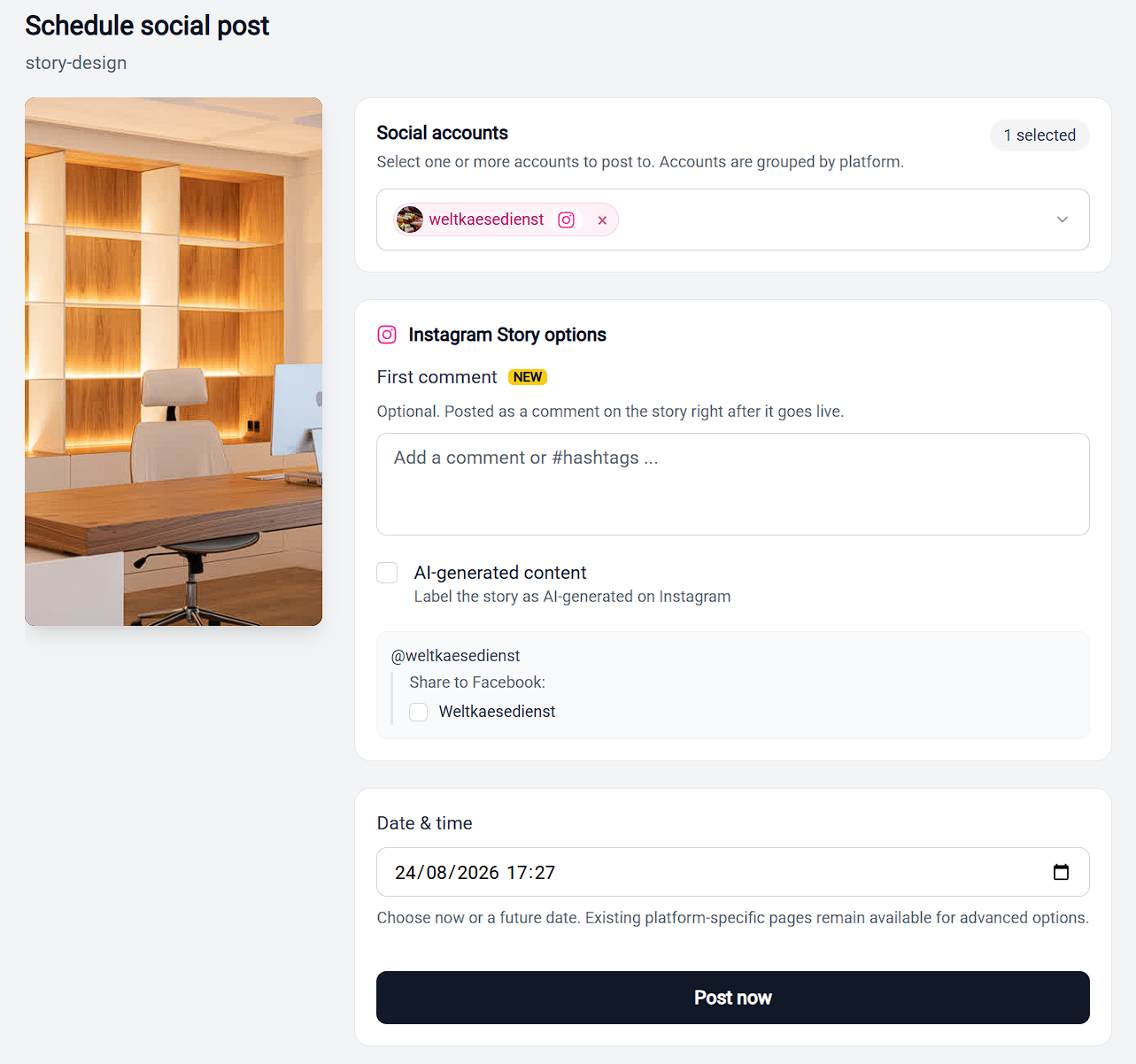
This is decided entirely by the Date & time field, and it catches people out.
The field arrives prefilled with the current date and time, so seeing a date in the box doesn't mean anything is scheduled yet.
- Leave the prefilled date as it is and the button reads Post now. Clicking it publishes immediately.
- Change the date and the button becomes Schedule to selected destination(s). Clicking it queues the post for that time.
Check the button label before you click. If you meant to schedule something and it went out straight away, the date was left at its prefilled value. There's no separate “post now” switch to look for.
Confirming it worked
After you click, you'll see: Scheduling commands were sent. Check each platform history for final status.
The Scheduling activity list on the same page shows every destination separately, because they can succeed or fail independently. Each one carries a status badge:
- Scheduled — queued, with the date and time it will go out. A Cancel link sits underneath while it's still in this state
- In progress — Storrito is posting it now
- Live — published
- Expired — for Instagram Stories, this means it posted and its 24 hours have since passed. The row still shows when it went out, so Expired is the normal end state for a Story rather than a problem
- Failed — the post didn't go out
YouTube adds a Processing step between In progress and Live, since YouTube processes the upload before it goes public.
If Storrito hits a problem with an entry, the reason appears in red beneath it, for example No active Connection available.
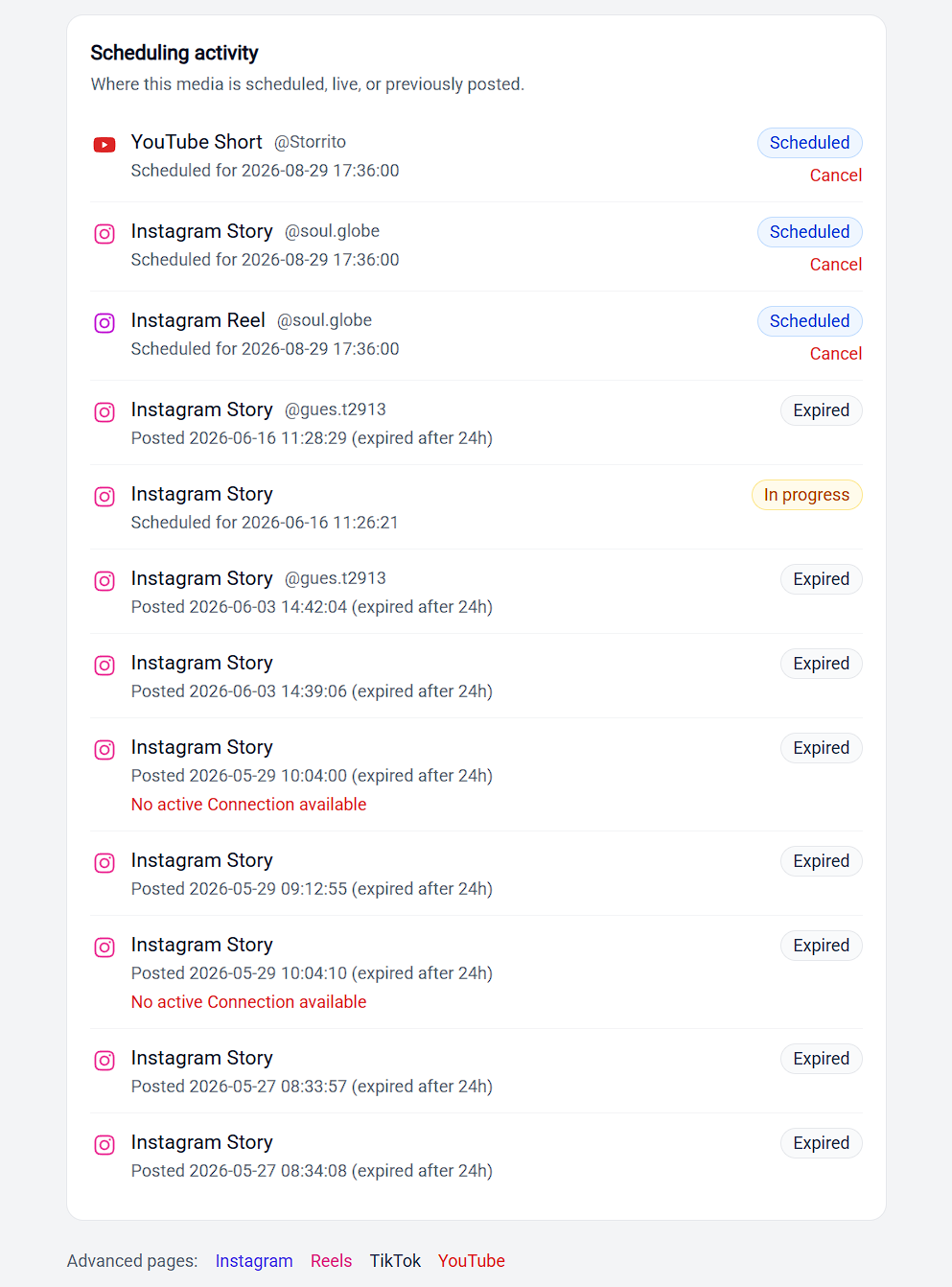
The list is a history rather than a snapshot, so earlier posts of the same media stay listed alongside anything currently queued.
Managing what's queued
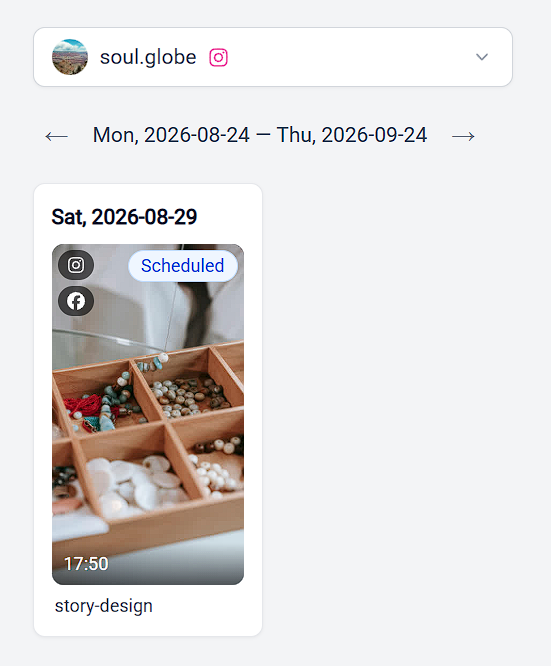
Scheduled posts also appear on your Schedule page, in Agenda or Calendar view. Hover a post and you get Edit, Re-schedule, and Cancel.
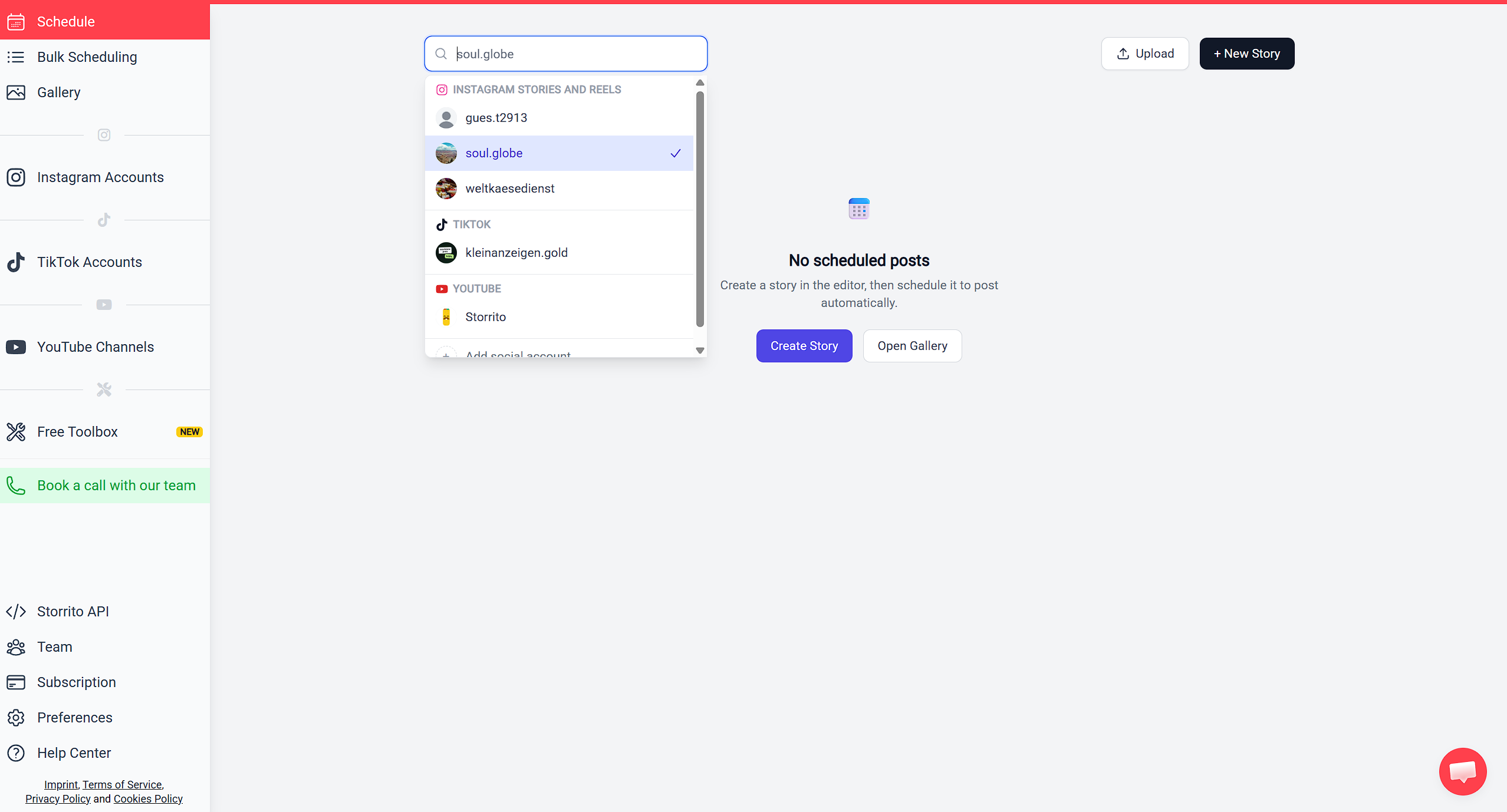
Filter by account using the account selector at the top. It opens a search box with your accounts listed underneath, grouped by platform. The grouping here is coarser than on the scheduling page: Stories and Reels share one INSTAGRAM STORIES AND REELS heading, because you are filtering by account rather than picking a destination. Add social account at the bottom of the list connects a new one.
Move through time with the date-range arrows, or click Today to jump back to the current month. Each card shows its destination icons in the top left of the thumbnail, its status in the top right, and the posting time along the bottom, so a crossposting Story is recognizable by the Facebook icon stacked under the Instagram one.
To cancel several at once, use Bulk Scheduling. For the difference between deleting and canceling, see How To Cancel Or Delete Stories.
Credits and scheduled posts
A scheduled post only publishes if your credit balance is positive at the moment it's due to go out — not at the moment you scheduled it. Scheduling something far ahead and letting the balance run to zero in the meantime means it won't publish.
If you schedule a long way in advance, keep an eye on the balance. See Credit Pricing FAQ for how credits are consumed.
Do I need to confirm anything?
No. Storrito posts for you at the time you set, with no approval step and no notification to respond to. See Do I Have To Confirm My Stories Before They Are Posted?
Tools
- Subtitle overlay
- Auto Post Instagram Stories
- How to Upload a Video to Instagram Story from PC
- Schedule Instagram Stories with the Link Sticker
- Instagram bio generator
- Upload and post Instagram Reels from PC
- Subtitle generator
- Instagram grid maker
- Schedule Instagram Stories
- Turn an MP3 into an Instagram Story video
- Can you schedule Instagram stories? Yes, with Storrito.com! (Here's How)
- Instagram Story bingo generator
- Storrito toolbox
- Instagram Story Planner (Scheduler)
- Instagram font generator
- Instagram Story 'this or that' generator
- Schedule Facebook Stories from PC
- Instagram Story Maker Online
- Trim a video
- Instagram carousel maker
- PDF to Instagram carousel
- How to schedule Instagram Reels
- How to add a story in Instagram from PC or Mac?
- Post Instagram Stories from PC
- Instagram Story tier list generator